Payment widget
How to put a Flourish Payments form on your own website, for one-time payments, donations, memberships and subscriptions.
Overview
The widget renders a multi-step payment form on any page. You describe the screens, fields, pricing and copy in one configuration object; there's no framework code to write. What the form collects goes to Salesforce through the public connector, and Stripe takes the payment on its own secure form inside the widget. What happens to the record afterwards is on Payments in Salesforce.
Version 1.3.1. Before any of this works, an admin has to have finished Setup, which gives you the connector page's URL.
Quick start
1. Load the scripts
The widget loads none of its own dependencies, so the page supplies all four: Vue 3, PrimeVue, the PrimeVue Aura theme, and Stripe.js. Which version of each you run is your decision, and a payment page is the wrong place for a library to change under you.
<!-- Vue 3 -->
<script src="https://unpkg.com/vue@3/dist/vue.global.js"></script>

<!-- PrimeVue and its Aura theme -->
<script src="https://unpkg.com/primevue@4/umd/primevue.min.js"></script>
<script src="https://unpkg.com/@primeuix/themes@2/umd/aura.js"></script>

<!-- Stripe.js -->
<script src="https://js.stripe.com/v3/"></script>

<!-- The Flourish Payments widget -->
<script src="https://cdn.toflourish.org/payments/v1/payment-widget.js"></script>
There's no stylesheet to link. The widget carries its own CSS.
Keep PrimeVue on @4 and its theme on @2, as above. PrimeVue 5 and the version 3 theme need a PrimeUI license key, and without one they put an "Invalid PrimeUI License" badge on your page. Versions 4 and 2 are free.
If one of the four is missing or fails to load, the widget says so instead of rendering:
- The visitor sees "The payment form could not be loaded. Please refresh the page, or contact us if it keeps happening."
- The browser console names each missing library and the URL that supplies it.
create()returnsnullinstead of throwing.
2. Add a place for it
<div id="pay"></div>
3. Create the form
<script>
  FLPayments.create('#pay', {
    text: {
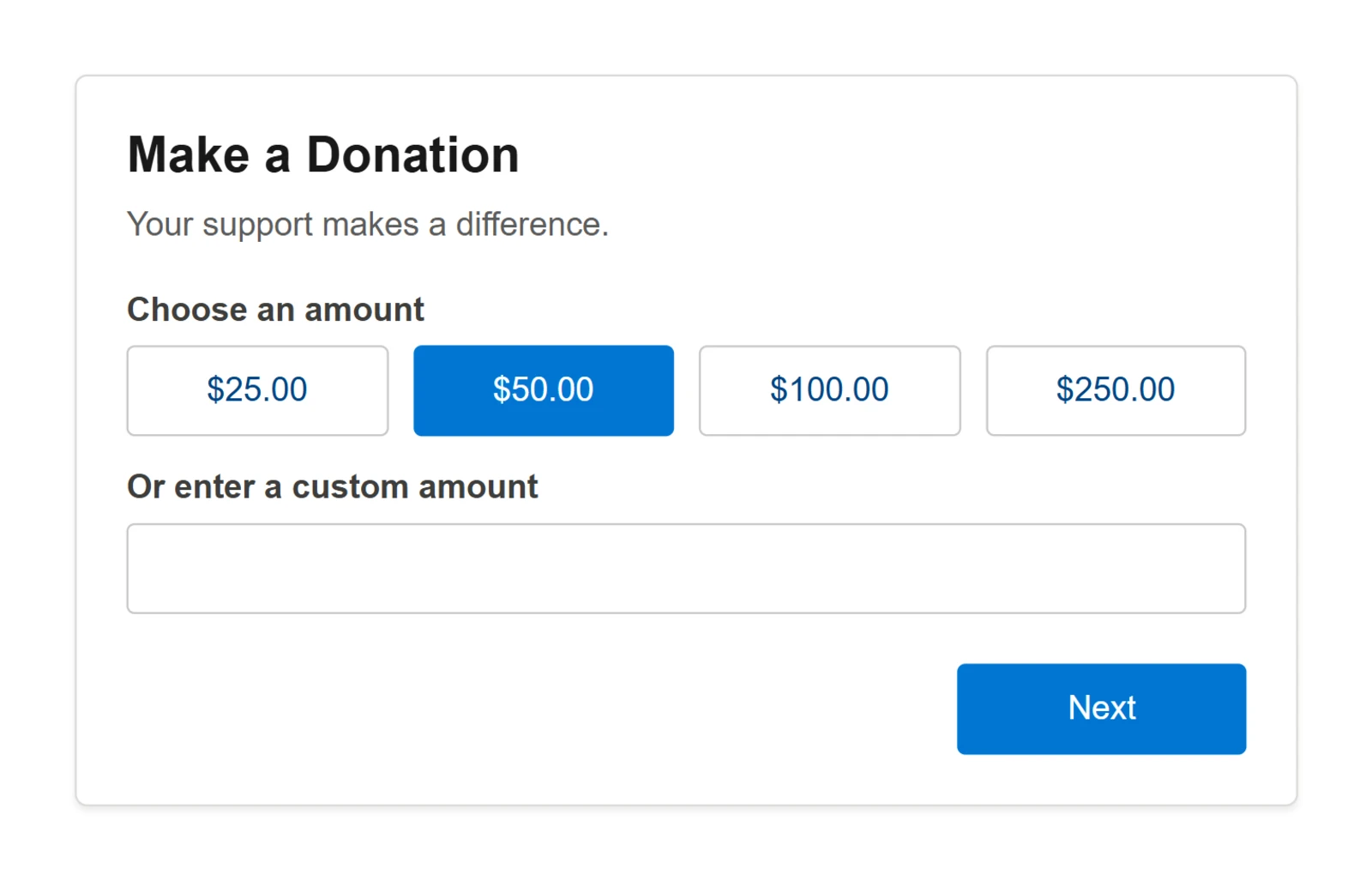
      title: 'Make a Donation',
      description: 'Your support makes a difference.'
    },
    pricing: { mode: 'singleAmount', currency: 'usd' },
    payload: {
      staticValues: { itemName: 'Donation', paymentCurrency: 'usd' }
    },
    paymentsLwc: { siteUrl: 'https://your-org.my.site.com/yoursite/payment-connector' },
    screens: [
      {
        id: 'amount',
        sections: [{
          fields: [{
            name: 'amount',
            type: 'preset-amount',
            label: 'Choose an amount',
            presets: [25, 50, 100, 250],
            allowCustom: true,
            customLabel: 'Or enter a custom amount',
            defaultSelected: 50
          }]
        }]
      },
      {
        id: 'donor',
        role: 'submit',
        sections: [
          {
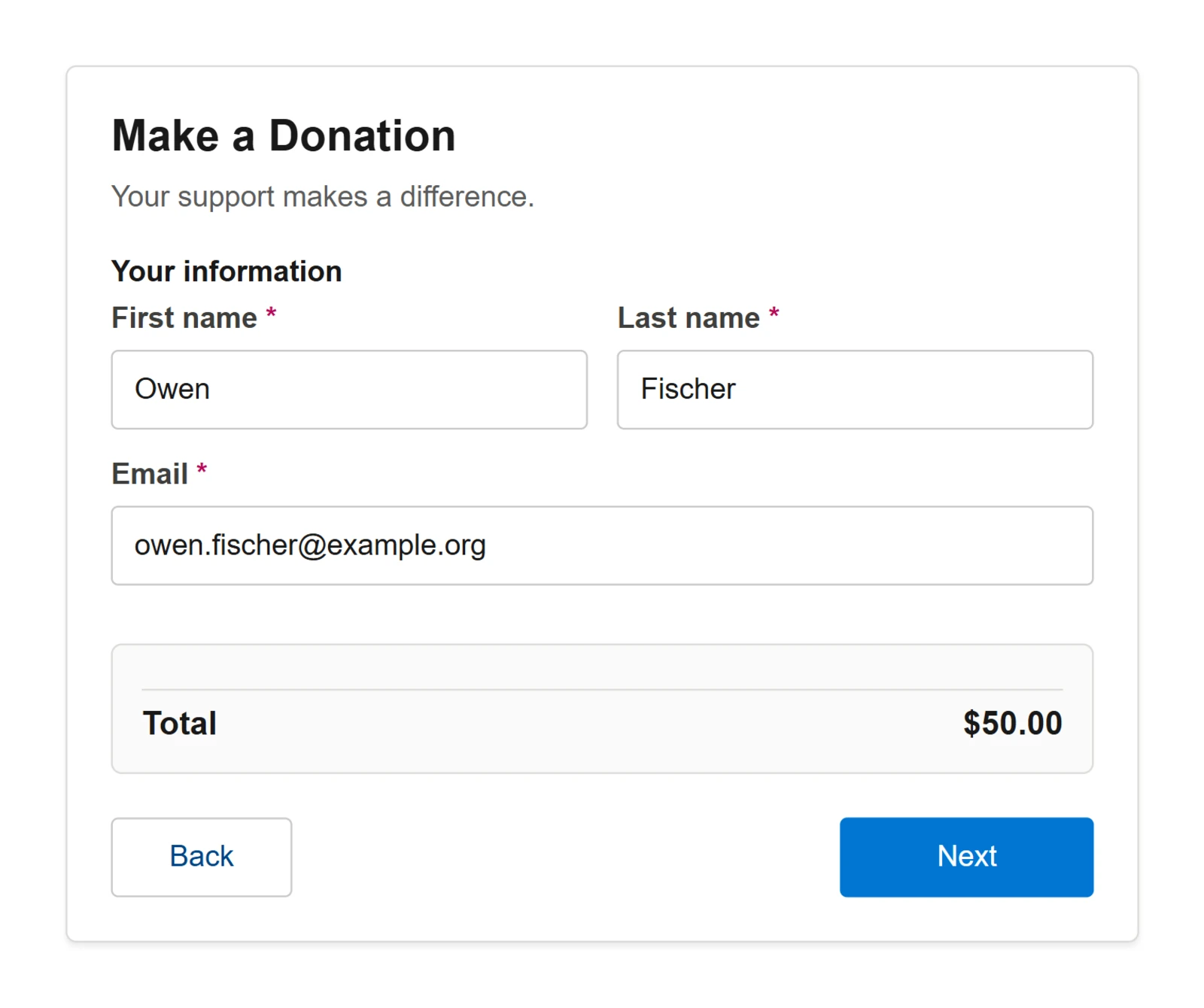
            label: 'Your information',
            columns: 2,
            fields: [
              { name: 'firstName', type: 'text',  label: 'First name', required: true },
              { name: 'lastName',  type: 'text',  label: 'Last name',  required: true },
              { name: 'email',     type: 'email', label: 'Email',      required: true, span: 2 }
            ]
          },
          {
            type: 'summary',
            rows: [{ key: 'amount', label: 'Total', format: 'currency', emphasis: true }]
          }
        ]
      },
      { id: 'pay',  role: 'checkout', sections: [{ type: 'checkout' }] },
      { id: 'done', sections: [{ type: 'confirmation' }] }
    ]
  });
</script>
Three things in there are required:
paymentsLwc.siteUrlis the connector page your admin set up.itemNameandpaymentCurrencygo to Salesforce with every payment that doesn't sell a Stripe price. Salesforce refuses the payment without them, and the widget doesn't add them for you.- The amount comes first. Every screen checks that an amount has been chosen, so it has to be on the first screen (or turn the check off; see Validation).
The form above, on a page of its own:
What the widget does to your page
The form renders inside its own shadow DOM, so your page's CSS doesn't reach its inputs and buttons. A few things do cross that line:
- Head styles are copied in. Every
<style>tag in your page's<head>is copied into the widget, including ones added later. That's how PrimeVue's styles reach it, and your own head styles come along too. - Stripe's step sits outside it. Stripe's payment form goes in a
<div id="fl-checkout-portal">placed right after your element (fl-checkout-portal-2for a second form on the page, and so on), because Stripe's bank-account flow needs a normal page to work. Its look comes from a style the widget adds to your page's<head>. - The viewport tag changes. It gains
minimum-scale=1, or one is created if the page has none. Stripe's bank-account flow needs it on phones.
How the flow works
A flow is an ordered list of screens. Each screen holds sections, and field sections hold fields. The visitor moves through the screens with Next and Back. The last screen has no Next button and usually shows a confirmation.
A screen's role decides what its Next button does:
| Role | What Next does |
|---|---|
| (none) | Checks the screen's visible fields, then moves on. |
submit | Checks the fields, sends everything to Salesforce, and moves on once Salesforce answers with a payment session. |
checkout | Shows Stripe's payment form. Next stays off until the payment completes. |
A few rules worth knowing:
- The checkout screen needs both parts:
role: 'checkout'and a section of typecheckout. Stripe's form appears only with both. - Only Stripe's form shows on the checkout screen. The title, other sections and messages are hidden there.
- The Finish button: the Next button on the second-to-last screen reads
text.finishButton; every other screen readstext.nextButton. In the usual flow that's the checkout screen.
Scrolling
- Changing screens: the widget scrolls to its own top. On the checkout screen it scrolls to Stripe's form.
- A field appears: when a field appears because of
showWhenand isn't fully in view, the widget scrolls just enough to show it.
Configuration reference
All options go in the second argument to FLPayments.create(selector, config).
FLPayments.create('#pay', {
  text:        { /* labels and copy */ },
  features:    { allowBackNavigation: true, autoFinishCheckout: false },
  pricing:     { mode: 'singleAmount', currency: 'usd', amountFieldName: 'amount', adjustments: [] },
  validation:  { requireAmount: true },
  state:       { defaults: {}, pricingDefaults: {} },
  payload:     { method: 'createCheckoutSession', staticValues: {} },
  stripe:      { mountSelector: '#fl-checkout' },
  paymentsLwc: { siteUrl: '...', iframeId: 'lwc-iframe', wrapperSelector: '.lwc-iframe-wrapper' },
  connector:   { timeoutMs: 10000, submitTimeoutMs: 30000, disabled: false, debug: false },
  theme:       { css: '', stylesheetUrl: '' },
  hooks:       { /* lifecycle callbacks */ },
  screens:     [ /* required */ ]
});
Smaller options:
| Option | Notes |
|---|---|
paymentsLwc.siteUrl | The connector page. It's always loaded over https, and your page's own URL parameters are passed on to it (see URL parameters). |
connector.timeoutMs | How long to wait for the connector before showing text.connectorTimeout. Defaults to 10 seconds. |
connector.submitTimeoutMs | How long Next waits for Salesforce to answer before showing text.submitTimeout. Defaults to 30 seconds. |
connector.disabled | true previews a layout without connecting. Nothing is sent to Salesforce, and submitting says payments are turned off. |
connector.debug | true logs every message to and from the connector in the browser console, under [FLPayments]. Useful when a page won't connect. |
stripe.mountSelector | Where Stripe's form goes. Must be an #id. Defaults to #fl-checkout, or #fl-checkout-2 and up for further forms on the page. |
stripe.publishableKey | Supplied by the connector. Set it yourself only with connector.disabled. |
paymentsLwc.iframeId, paymentsLwc.wrapperSelector | Leave as they are unless they clash with your page. The wrapper must be a class selector. |
testData | An object copied into the form after everything else, for trying a page out. Don't ship it. |
text
| Key | Default |
|---|---|
title | '' |
description | '' |
paymentDescription | '', shown on the checkout screen |
confirmationImage | A built-in success image. Set '' for none. |
confirmationHeading | 'Payment Complete' |
confirmationDescription | 'Thank you for your payment.' |
nextButton, finishButton, backButton | 'Next', 'Finish', 'Back' |
connectorLoading | 'Loading secure payment system...' |
connectorTimeout | 'Payment system is unavailable. Please refresh the page or try again later.' |
connectorMissingSettings | 'Payment system is not configured. Please contact the site administrator.' Shown when the connector answers without a Stripe key. |
submitTimeout | 'The payment system did not respond. Please try again.' Shown when Salesforce doesn't answer within connector.submitTimeoutMs. |
Some wording can't be changed here:
- Payments section labels: "Amount Due", "Total" and "Balance:".
- The select placeholder: "Select..." (a field's own
placeholderreplaces it). - Validation messages (except through
errorMessage). - During checkout: "Completing your payment…" and "Something went wrong."
- Salesforce errors: an error from Salesforce is shown as written.
features
| Key | Default | What it does |
|---|---|---|
allowBackNavigation | true | Shows the Back button on screens after the first. |
autoFinishCheckout | false | When true, the flow moves on by itself as soon as the payment completes, with a brief "Completing your payment…" message and no Finish button. Keep a screen after checkout, or the visitor is left on an empty card. When false, the visitor clicks Finish. |
pricing
pricing: {
  mode: 'singleAmount',          // or 'external'
  currency: 'usd',               // for display; see below
  amountFieldName: 'amount',     // must match the preset-amount field's name
  adjustments: [
    {
      enabled: true,             // required; an adjustment without it is ignored
      type: 'percentage',        // the only type
      baseKey: 'baseAmount',     // the default
      targetKey: 'feeAmount',    // required
      percent: 0.029,            // a 2.9% processing fee
      applyWhen: (form) => form.coverFees === true   // optional
    }
  ]
}
Modes
singleAmount: the amount comes from the chosen preset or the custom amount, the enabled adjustments run, and the total is the amount plus the fee.external: your code supplies the figures, and the widget only rounds them. Adjustments don't run.- Set the starting figures in
state.pricingDefaults. To change them later, write toctx.vm.pricingStatefrom a hook. - With no
amount, the total isbaseAmountalone.
- Set the starting figures in
Pricing keys, for summary rows, showWhen and applyWhen checks, and hooks:
| Key | Meaning |
|---|---|
baseAmount | The chosen or entered amount, or the value your code set. |
feeAmount | Written by adjustments. Each one overwrites its target, so the last enabled adjustment aimed at feeAmount wins. |
amount | The total: baseAmount plus feeAmount. |
An adjustment can write to a key of its own through targetKey. A summary row can show it, but it isn't added to the total and isn't sent to Salesforce.
Currency. pricing.currency only formats amounts on screen. Stripe charges in paymentCurrency from the payload, so set payload.staticValues.paymentCurrency to match.
Sections
Each screen has an id (required), an optional role, and a list of sections. Set a section's type, or leave it out for fields. Every section accepts id, label, description and showWhen, a function (form, pricing) => true or false.
| Type | What it shows |
|---|---|
fields | A grid of fields. columns: 2 for two columns. |
summary | Read-only rows from the pricing keys. Each row takes key, label, format: 'currency' and emphasis. |
content | A block of text, or of html you control, with an optional class. |
image | src and alt, with an optional caption and class. |
divider | A horizontal rule. |
alert | A callout with text or html. severity is 'info' (the default), 'success', 'warning' or 'error'. |
payments | The payments of an existing Opportunity. Shows only with a payment model. |
checkout | Stripe's payment form. Goes on the role: 'checkout' screen. |
confirmation | The success image, heading and description from text. |
custom | A component you registered; see Custom components. |
Fields
Every field takes name (required), label, required (true, or a function), showWhen, defaultValue, errorMessage and tooltip. Text, email, currency, long text and select fields also take a placeholder. In a two-column section, span: 2 makes a field fill the row.
| Type | Notes |
|---|---|
preset-amount | See below. |
text | A text box. |
email | A text box that checks the address format. |
currency | A number formatted as money. min sets the floor (default 0). |
textarea | Several lines of text. rows defaults to 3. |
select | A dropdown. Pass options: [{label, value}], or name other keys with optionLabel and optionValue. |
radio | A set of choices. Each option can carry a description. |
checkbox | A single checkbox, starting unticked. checkboxLabel sets the text beside it. A required checkbox must be ticked. It shows no tooltip. |
preset-amount fields:
- Buttons and custom amount:
presets: [25, 50, ...]makes the buttons.allowCustomadds a box for another amount.defaultSelectedpicks a button to start with. - Copy:
presetLabelsrenames individual buttons, for example{ "100": "$100 Sustainer" }.customLabelandcustomPlaceholderset the custom box's copy. min: the lowest amount accepted (default 1).required: a chosen button or a typed amount both count. The amount check already covers this, so it mostly matters when that check is off.
Only the first preset-amount field on the form counts. It's the one defaultSelected and the amount check use, and its error shows above the buttons.
Showing fields conditionally
required, showWhen and applyWhen can all be functions of the form:
{ name: 'company', type: 'text', label: 'Company',
  showWhen: (form) => form.donorType === 'business',
  required: (form) => form.donorType === 'business' }
A hidden field is never required or checked, but its value is still sent.
URL parameters
Pre-filling the form. A URL parameter named flpaypre_ plus a field name fills that field when the page loads:
https://yoursite.org/donate?flpaypre_email=jane@example.com&flpaypre_firstName=Jane
- Values arrive as text.
flpaypre_coverFees=truesets the text"true", which a check likeform.coverFees === truewon't match. - Amounts fill the custom box.
flpaypre_amount=100fills the custom amount; it doesn't select the $100 button. - Any name is accepted, not just your fields, and goes to Salesforce with everything else. That includes names Salesforce acts on, such as
priceIdandmode. On a page where those matter, set them inpayload.staticValues, which a URL can't override.
Paying an existing Opportunity. Your page's URL parameters are passed on to the connector, which reads two of its own: flpayoid, the Opportunity to pay, and flpaypid, a payment on it. See Payment models.
state
state: {
  defaults: {                  // starting field values, by field name
    frequency: 'once',
    coverFees: false
  },
  pricingDefaults: {           // starting pricing, for 'external' mode
    baseAmount: 0,
    amount: 0
  }
}
A field's starting value is decided in this order, with later steps winning:
- Its
defaultValue, used only whenstate.defaultsdoesn't name the field. state.defaults.- A
flpaypre_URL value. testData.
theme
Two layers, applied in order, the later one winning:
theme.stylesheetUrl: the address of a CSS file.theme.css: CSS as text.
Both apply inside the widget, so set the variables below rather than restyling its internals.
theme: {
  css: `
    :host { --flpay-brand: #c2185b; --flpay-brand-hover: #880e4f; }
  `
}
| Variable | Default | Used for |
|---|---|---|
--flpay-brand | #0176d3 | Main buttons, links and selected states |
--flpay-brand-hover | #014486 | The Back button and preset buttons on hover |
--flpay-brand-active | #032d60 | The selected preset button's text |
--flpay-focus | #1b96ff | The focus ring |
--flpay-surface | #ffffff | The card's background |
--flpay-surface-alt | #fafaf9 | Summary rows |
--flpay-border | #c9c9c9 | Borders |
--flpay-border-weak | #dddbda | Light borders |
--flpay-text | #181818 | Text |
--flpay-text-muted | #5c5c5c | Secondary text |
--flpay-text-label | #3e3e3c | Field labels |
--flpay-radius-sm | 4px | Rounding on inputs and buttons |
--flpay-radius-md | 6px | Rounding on cards |
--flpay-shadow-card | 0 2px 3px rgba(0, 0, 0, 0.08) | The card's shadow |
--flpay-shadow-focus | 0 0 0 2px var(--flpay-focus) | The focus ring's shadow |
--flpay-widget-padding | 24px | Space inside the card |
Stripe's step isn't styled by these. It sits outside the widget (see What the widget does to your page). To restyle it, target #fl-checkout-portal (or .fl-checkout-portal for every form on the page) from your own page's stylesheet, with !important.
hooks
Functions the widget calls as the visitor moves through the form:
hooks: {
  beforeValidate:     (ctx) => { /* ... */ },
  afterValidate:      (ctx) => { /* ... */ },
  beforePayloadBuild: (ctx) => { /* ... */ },
  transformPayload:   (payload, ctx) => ({ ...payload, source: 'web' }),
  onPaymentResponse:  (response, ctx) => { /* ... */ },
  onError:            (error, ctx) => { /* ... */ }
}
| Hook | When it runs |
|---|---|
beforeValidate | Before each screen is checked. Throw an error to stop the visitor with your own message. |
afterValidate | After a screen passes its checks. |
beforePayloadBuild | On submit, once the payload is built, just before transformPayload. Changing the form here doesn't change what's sent. |
transformPayload | Last, with the payload. Return what to send. If it returns nothing, the payload as it now stands is sent. |
onPaymentResponse | After Salesforce answers and Stripe's form is showing. |
onError | When a screen fails its checks, Salesforce returns an error, or Salesforce doesn't answer in time. Not called when the connector fails to load. |
Hooks run straight through and aren't waited on, so an async hook can't hold the form.
What ctx holds:
| Property | Description |
|---|---|
config | The whole configuration. |
currentScreen | The current screen's id. |
formState | Field values, by name. |
pricingState | A copy of the pricing keys. To change pricing, write to ctx.vm.pricingState. |
customData | A shared place to keep data between hooks, screens and custom components. |
selectedPresetAmount | The selected preset, if any. |
vm | The widget's Vue instance, for advanced cases. |
payload
What's sent to Salesforce on submit, in this order, later entries winning:
- Every field's value, including hidden fields and any
flpaypre_values. amount,baseAmountandfeeAmountfrom pricing, in dollars.- The payment model selections, if there are any.
payload.staticValues.- Whatever
transformPayloadreturns.
Leave payload.method as 'createCheckoutSession'; it's the only one the connector answers, and with any other name the form waits forever.
Names Salesforce acts on:
| Name | What it does |
|---|---|
itemName, paymentCurrency | Required unless you send priceId. Name what's being paid for, and set the currency Stripe charges in. |
itemDescription | A description on Stripe's receipt line. |
email, firstName, lastName, companyName | Find or create the payer and their company. |
amount, feeAmount, baseAmount | The payment amount. |
mode, priceId, interval, intervalCount | Start a subscription; see Subscriptions. |
setupFutureUsage | 'off_session' saves the card so Salesforce can charge it later. |
quantity, collectPhoneNumber, customerId, metadata, clientReferenceId, returnUrl | Passed on to Stripe. |
Every other name is kept on the Opportunity, in Payment Custom Data, for your Flows to read. See Payments in Salesforce.
The amount the form shows is a preview. Salesforce decides what's charged before calling Stripe; see Server-side pricing.
Payment models
A payment model page collects against an existing Opportunity: an invoice, a balance due, or a set of installments. The page is opened with ?flpayoid=<Opportunity ID>. When that Opportunity has a Payment Model, a payments section shows what's owed:
| Payment Model | What the visitor sees |
|---|---|
| Opportunity Only | A read-only "Amount Due". |
| Summed Payments | Read-only payment lines and their total. |
| Selective Payments | A checkbox per payment, all ticked to start. The total follows the ticks. |
| Dynamic Payments | An amount box per payment, starting at 0 and capped at its balance. Salesforce refuses an amount of 0 or less, or above the balance. |
Build these pages with validation: { requireAmount: false }. The payments total isn't part of the widget's pricing, so with the amount check on, submit fails with "Please choose or enter a valid amount." For the same reason, a summary row can't show the payments total.
Setting up payment models on records is on Payments in Salesforce.
Subscriptions
A page starts a subscription instead of a one-time payment by sending mode: 'subscription'. The payer checks out on the same Stripe form. The price comes from one of two places:
| Send | What Stripe charges |
|---|---|
priceId | A recurring Stripe price, such as one made from a Product on its record page. The price sets the amount, currency and billing period, so the page's own amount is ignored. |
amount with interval | The form's amount every interval: day, week, month (the default) or year. Add intervalCount for longer periods, so month with intervalCount: 3 bills quarterly. Needs itemName and paymentCurrency, like any payment without a price. |
Send itemName with a priceId too: it names the Opportunity.
A fixed price. The form only collects the payer, so turn the amount check off:
FLPayments.create('#pay', {
  validation: { requireAmount: false },
  payload: {
    staticValues: {
      mode: 'subscription',
      priceId: 'price_1QxYz...',
      itemName: 'Monthly Giving Circle'
    }
  },
  paymentsLwc: { siteUrl: '...' },
  screens: [ /* payer fields on a submit screen, then checkout and confirmation */ ]
});
One-time or monthly, the visitor's choice. A value in staticValues can't follow the form, so decide in transformPayload:
hooks: {
  transformPayload: (payload, ctx) => ctx.formState.frequency === 'monthly'
    ? Object.assign(payload, { mode: 'subscription', interval: 'month' })
    : payload
}
What a subscription leaves on your records, and how renewals and cancellations work, is on Products, invoices and subscriptions.
Custom components
Register a Vue component before calling create(), then use it in any flow:
FLPayments.registerComponent('donor-disclaimer', {
  props: ['section', 'formState', 'pricingState', 'customData', 'config'],
  template: '<p class="muted"><strong>Note:</strong> {{ section.note }}</p>'
});

// Then in your screens:
{ type: 'custom', component: 'donor-disclaimer', note: 'All donations are tax-deductible.' }
- Props: a custom component receives
section,formState,pricingState,customDataandconfig, plus anything insection.props. - Names: use lowercase names with hyphens, and don't start them with
p-.
Validation
- When: fields are checked when the visitor clicks Next. Hidden fields are skipped.
- The amount check: with
validation.requireAmount: true(the default), every screen's Next also checks the amount. It must be at least the first preset-amount field'smin, or 1. Turn it off on pages where the amount comes from a Stripe price or a payment model. - Errors:
- Each error shows under its field, except the amount error, which shows above the preset buttons.
- The first problem scrolls into view.
- A message at the bottom repeats a single error, or says "Please complete the highlighted fields."
- Messages: a field's
errorMessagereplaces "This field is required."
A complete example
A donation page with an optional processing fee:
<!DOCTYPE html>
<html lang="en">
<head>
  <meta charset="UTF-8" />
  <meta name="viewport" content="width=device-width, initial-scale=1.0" />
  <title>Donate</title>

  <script src="https://unpkg.com/vue@3/dist/vue.global.js"></script>
  <script src="https://unpkg.com/primevue@4/umd/primevue.min.js"></script>
  <script src="https://unpkg.com/@primeuix/themes@2/umd/aura.js"></script>
  <script src="https://js.stripe.com/v3/"></script>
  <script src="https://cdn.toflourish.org/payments/v1/payment-widget.js"></script>
</head>
<body>

<div id="pay"></div>

<script>
FLPayments.create('#pay', {
  text: {
    title: 'Support Our Mission',
    description: 'Choose an amount and complete your donation.',
    confirmationHeading: 'Thank You!',
    confirmationDescription: 'Your donation has been received.'
  },

  screens: [
    {
      id: 'form',
      sections: [
        {
          label: 'Donation Amount',
          fields: [{
            name: 'amount',
            type: 'preset-amount',
            label: 'Select an amount',
            presets: [25, 50, 100, 250, 500],
            defaultSelected: 50,
            allowCustom: true,
            customLabel: 'Or enter a custom amount',
            min: 5
          }]
        },
        {
          label: 'Your Information',
          columns: 2,
          fields: [
            { name: 'firstName', type: 'text',  label: 'First Name', required: true },
            { name: 'lastName',  type: 'text',  label: 'Last Name',  required: true },
            { name: 'email',     type: 'email', label: 'Email',      required: true, span: 2 }
          ]
        },
        {
          fields: [
            { name: 'coverFee', type: 'checkbox', checkboxLabel: 'Cover the 3% processing fee' }
          ]
        }
      ]
    },
    {
      id: 'review',
      role: 'submit',
      sections: [{
        type: 'summary',
        rows: [
          { key: 'baseAmount', label: 'Donation',       format: 'currency' },
          { key: 'feeAmount',  label: 'Processing Fee', format: 'currency' },
          { key: 'amount',     label: 'Total',          format: 'currency', emphasis: true }
        ]
      }]
    },
    { id: 'checkout',     role: 'checkout', sections: [{ type: 'checkout' }] },
    { id: 'confirmation', sections: [{ type: 'confirmation' }] }
  ],

  pricing: {
    mode: 'singleAmount',
    currency: 'usd',
    adjustments: [{
      enabled: true,
      type: 'percentage',
      targetKey: 'feeAmount',
      percent: 0.03,
      applyWhen: function (form) { return form.coverFee === true; }
    }]
  },

  payload: {
    staticValues: {
      itemName: 'Donation',
      paymentCurrency: 'usd',
      campaignId: '701xx000000abcd'
    }
  },

  paymentsLwc: { siteUrl: 'https://your-org.my.site.com/yoursite/payment-connector' },

  theme: {
    css: ':host { --flpay-brand: #2d6a4f; }'
  }
});
</script>

</body>
</html>
campaignId isn't a name Salesforce acts on, so it lands in Payment Custom Data, where a Flow can read it.
Public API
| Member | What it does |
|---|---|
FLPayments.create(selector, config) | Builds the form in the element selector matches, and returns the Vue app. Call unmount() on it to remove the form. Returns null when a dependency is missing, and throws when nothing matches the selector or the element already holds a form. |
FLPayments.registerComponent(name, definition) | Registers a component for custom sections. Call it before create(). |
FLPayments.version | The widget's version, such as '1.3.1'. |
FLPayments.build | A short fingerprint of the exact file the page loaded, for telling a cached copy from a fresh one. |
FLPayments.debug() | Logs and returns what's on the page: the version, build, missing dependencies, and how many forms are showing. Useful when a page misbehaves. |
The element you build into also carries data-fl-state, ready or error, and on error a data-fl-error that says what went wrong.
A page can hold several forms, each in its own element. Only one Stripe payment form can be open at a time, so opening it in one form closes it in another. To remove a form, call unmount() on the app create() returned; it takes its Stripe area and page styles with it.
Versioning
| Address | What it serves |
|---|---|
https://cdn.toflourish.org/payments/v1/payment-widget.js | The latest 1.x release. Use this one. A breaking change would come out under /v2/ and leave it alone. |
https://cdn.toflourish.org/payments/v1/payment-widget.min.js | The same, minified. |
Browsers and the CDN keep a copy for about five minutes, so a new release reaches visitors shortly after it's published. If you host your own copy instead, put the success image beside it at images/pay_img_successSplash.png, or set text.confirmationImage.