Connecting your mailbox
How to connect your email to Salesforce, control what is captured, and disconnect again.
Overview
Once your administrator has set Rapport up, connecting takes one click. From then on, email you exchange with people outside your organization is captured into Salesforce automatically, against the Contacts and records it relates to.
Your mail is not read until you connect. Your organization's Google grant makes Rapport technically able to reach mailboxes, but Rapport only ever syncs a mailbox whose owner has opted in. That opt-in is yours to give and yours to withdraw.
Connecting
Open the Rapport page in your Salesforce navigation. In the panel on the left, under Email Sync, choose Connect Mailbox. It shows the address Rapport would sync, which is the email address on your Salesforce user record, and its current state.
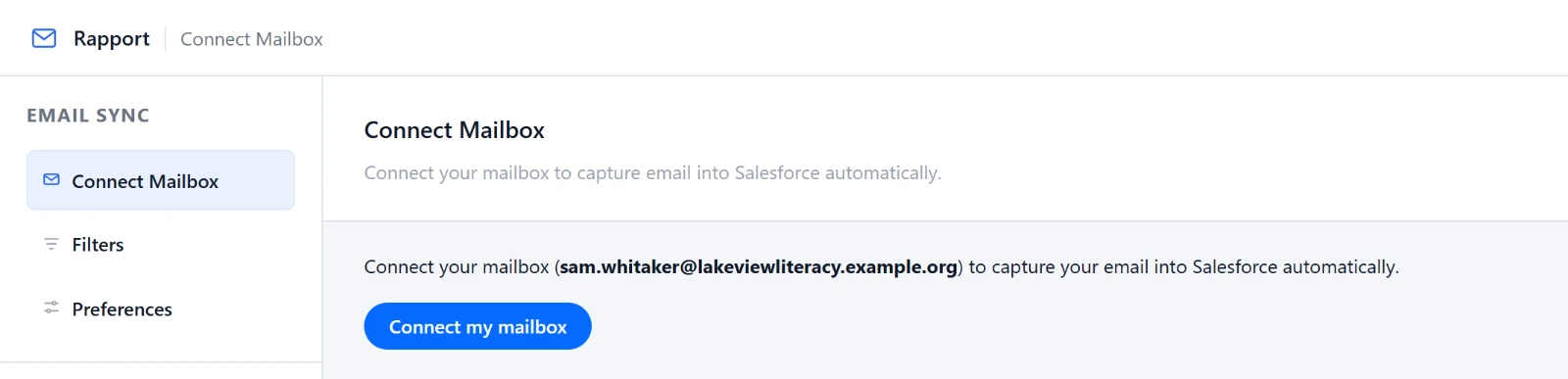
Click Connect my mailbox. That records your consent, with the date, and sync begins on the next cycle. There is no Google sign-in step and no popup: your organization has already authorized Rapport, so connecting is a decision recorded in Salesforce rather than a handshake with Google.
Once connected, your mailbox is listed with the status Syncing.

If you are told Rapport is not enabled for your mailbox yet, your org runs in Admin-Managed mode and nobody has enabled you. There is no connect button to press in that state. Ask your Salesforce administrator to switch your mailbox on. Once they have, it is listed as Syncing, with nothing more for you to do.
Your first sync reaches back over recent history as well as keeping up with new mail, so expect some older messages to appear. How far back is set by your administrator.
Disconnecting
Click Disconnect beside your mailbox on the Connect Mailbox panel. Your consent is withdrawn and Rapport stops reading your mailbox from the next cycle. The mailbox stays listed, with the status Not syncing.
Email already captured stays in Salesforce. Disconnecting stops future capture; it does not retract what has been recorded.
To start again, click Reconnect. If your org runs in Admin-Managed mode, disconnecting leaves your administrator's activation in place: your mailbox is listed as enabled by your administrator and waiting for your confirmation, and Confirm and start syncing starts it again without asking them.
Choosing what gets captured
Choose Filters in the left panel to tune your own mailbox. Your administrator sets rules for the whole organization, and these are your personal layer on top.
There are two lists:
| Section | Effect |
|---|---|
| Always sync | Capture mail involving these addresses or domains, even when an org-wide rule would skip it. |
| Never sync | Skip mail involving these addresses or domains. |
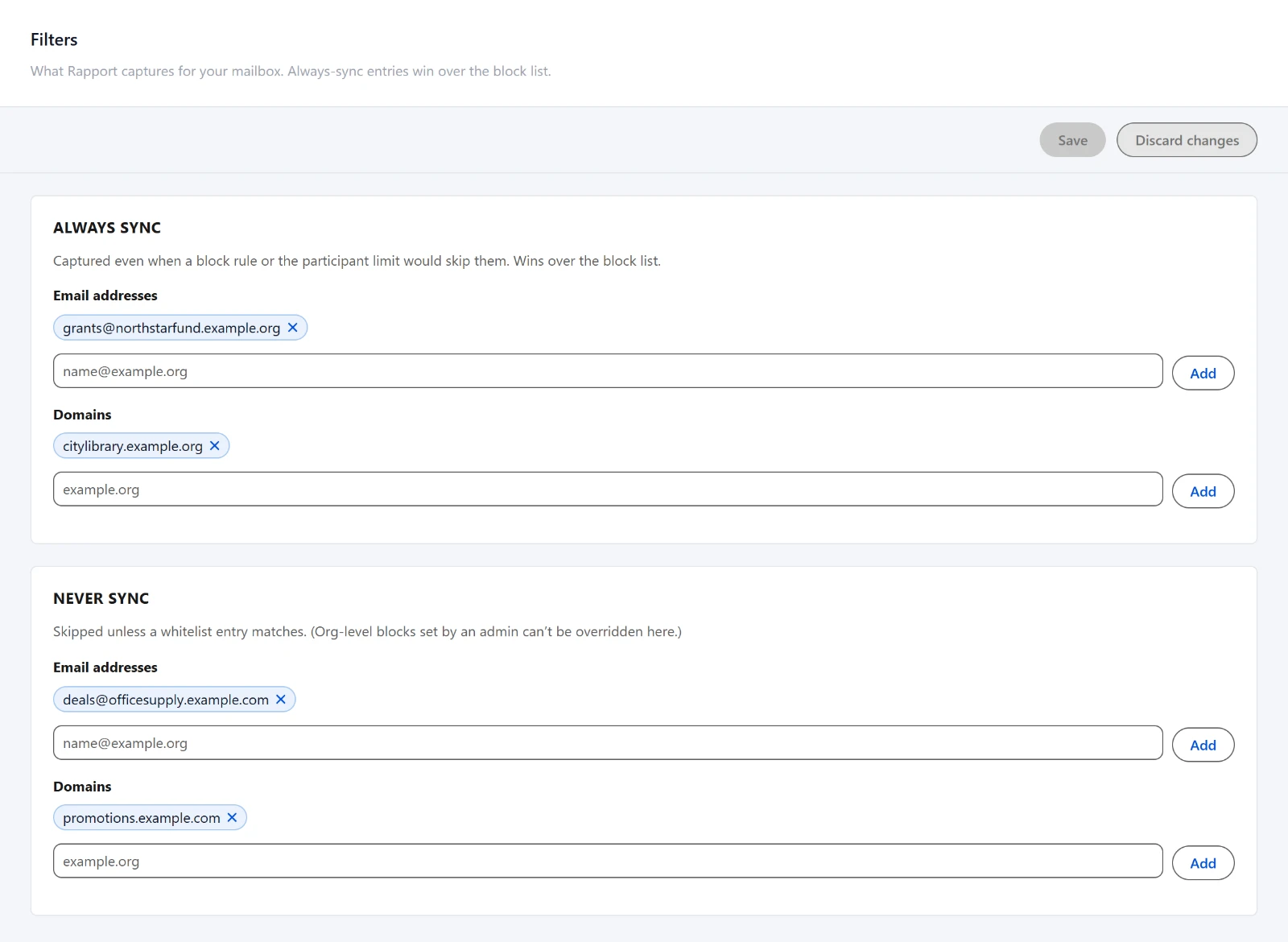
Each section takes Email addresses and Domains separately. Type a value into the box and click Add, or press Enter. To take an entry out, click the x beside it. Nothing is saved until you press Save, and Discard changes puts both lists back as they were.
Always sync wins over Never sync, and over the org's general rules. So if your organization skips mail with a large number of recipients, but you want a particular partner's mail kept regardless, add their domain to Always sync.
One kind of rule you cannot override. Your administrator can hard block specific addresses or domains for the whole organization, and no Always sync entry changes that. This is used for correspondence that should not be recorded at all. If mail you expect is not appearing and your Always sync list looks right, this is worth asking about.
Choosing sent or received mail
Choose Preferences in the left panel to decide whether the email you send, and the email you receive, is captured from your mailbox.
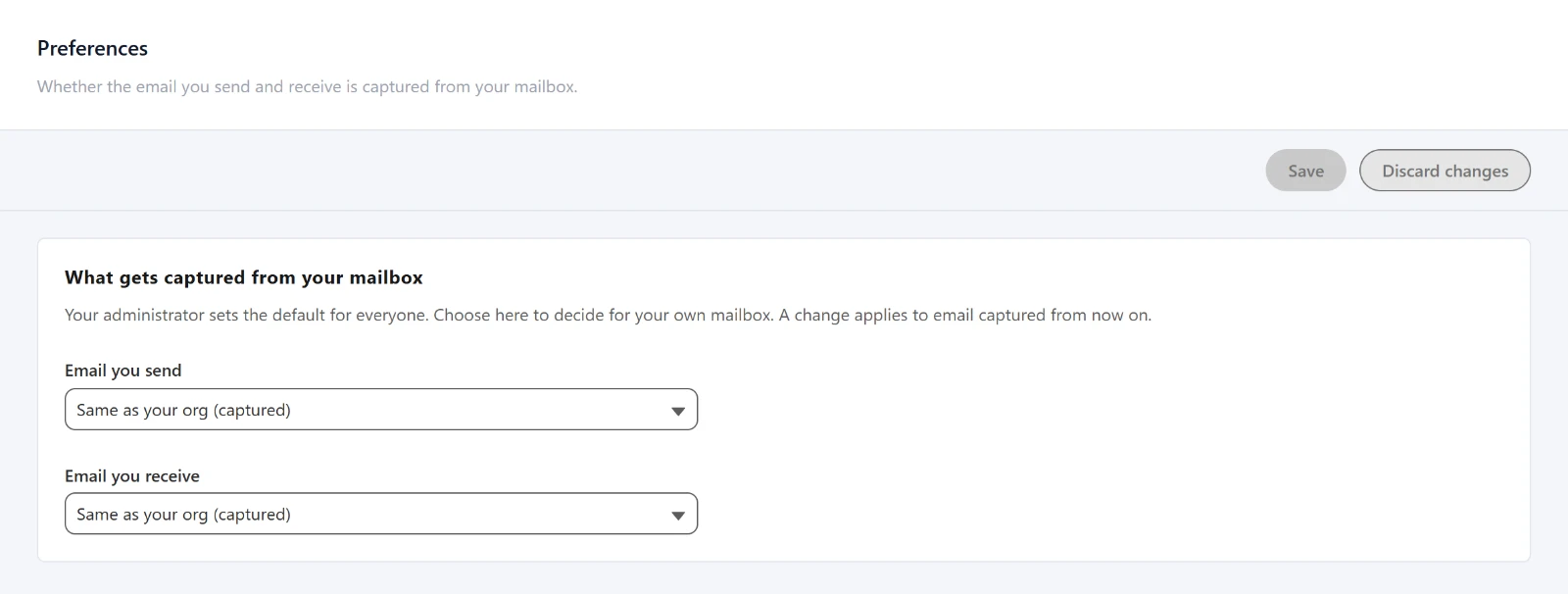
Your administrator sets the default for everyone, and both lists start on Same as your org, which says what that default is. Choose Capture or Don't capture to decide for your own mailbox instead. Nothing is saved until you press Save, and a change applies to email captured from then on: what is already in Salesforce stays.
What is captured, and what is not
Captured: email you exchange with people outside your organization, in both directions unless your administrator, or you on Preferences, has limited it to one.
Not captured, by default and depending on how your org is configured:
- Mail where everyone involved is inside your organization. Internal chatter stays out; a thread with one external person on it is kept.
- Mail with a large number of participants, which keeps newsletters and mass mailings out.
- Anything on your organization's blocked list, or on your own Never sync list.
- Spam and trash.
Where your email appears
Each captured message becomes an email record on the Salesforce activity timeline, showing as an email rather than a task.
You will find it on the record it relates to, usually the Account of the person you were writing to, and the people on the message are attached individually so it shows against them too. Anyone Rapport could not match to a record is not attached, though their address is still on the message. Only the body of the latest message in a thread is stored, not the quoted chain underneath it.
Because these are ordinary Salesforce records, your team can report on them and build automation from them.
If something looks wrong
No email is appearing. Check that Connect Mailbox shows your mailbox as Syncing. If it does, and you have only just connected, give it a cycle or two.
Some email is missing. Check your own Filters and Preferences first, then ask your administrator about the org-wide rules. Internal-only mail and large recipient lists are the two that most often explain it.
An email is attached to the wrong record, or to nobody. Rapport matches people by their email address, so an address that is not on any Contact will not match, and an unmatched person is not attached at all. Adding the address to the right Contact fixes future messages.