Campaigns
How to create a Community Microphone campaign, share it, and read what comes back.
Overview
Community Microphone collects spoken feedback from the public. You write a set of questions, share one link, and anyone who opens it records their answers on their phone. Each recording comes back transcribed, summarized, scored for sentiment, and tagged against the topics you care about.
Nobody needs an account, an app, or a Salesforce login to answer. They need the link and a microphone.
The flow end to end:
- You build a campaign: a list of spoken prompts, in one or more languages.
- You share the campaign's link, on a flyer, in an email, or embedded in a page.
- Someone opens it, picks a language if you offer more than one, and records an answer to each prompt.
- Each answer is transcribed, then analyzed.
- Responses land in Salesforce as records you can report on, the campaign gets a rolled-up summary, and an assistant on the campaign record answers questions about what people said.
Before you start
Two things have to be in place for a campaign to work, and both are one-time org setup rather than per campaign:
- The public site URL, which is what campaign links are built from.
- An API token, which is what lets recordings be sent for transcription and analysis, and what the campaign assistant runs on.
If the token is missing, nothing warns you while you build. The campaign will look finished and correct, and the failure only appears when a speaker tries to record. Confirm both are set before you share a link with anyone.
Creating a campaign
Open the Campaign Builder tab and click New Campaign. A campaign needs a name before it can be created. Once it exists, the builder opens it for editing.
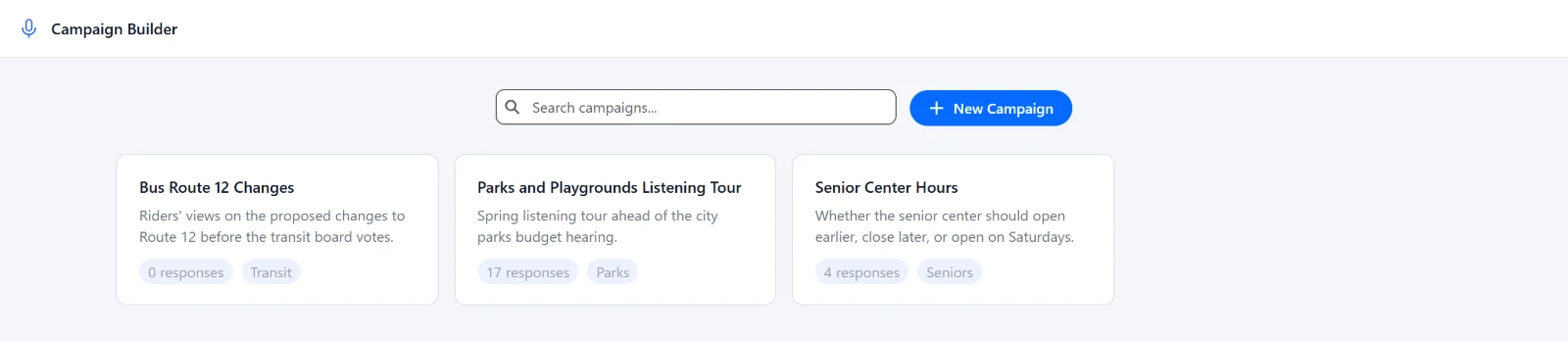
Editing is organized into two groups down the side. Build holds what shapes the experience: Basics, Languages, Prompts, and Experience. Manage holds Analysis, Capture, and Share. Open record, beside Delete and Save, opens the campaign record itself.
An Unsaved marker appears while you have pending edits. Leaving with unsaved work prompts you to confirm.
Basics
| Field | Purpose |
|---|---|
| Campaign Name | Your label for the campaign. It also travels on the link as the campaign name for web analytics. |
| Description | Internal notes. Speakers never see it. |
| Organization | The account this campaign belongs to, for attribution and reporting. |
| Tags | A free-text reporting dimension, for grouping campaigns however suits you. |
| Status | Planned, Active, or Completed. |
Status is mostly for your own reporting. As the builder puts it, Completed stops the public link from accepting any further responses, and Planned and Active both accept. Anyone opening a completed campaign's link sees a closed message instead of the recorder.
Writing prompts
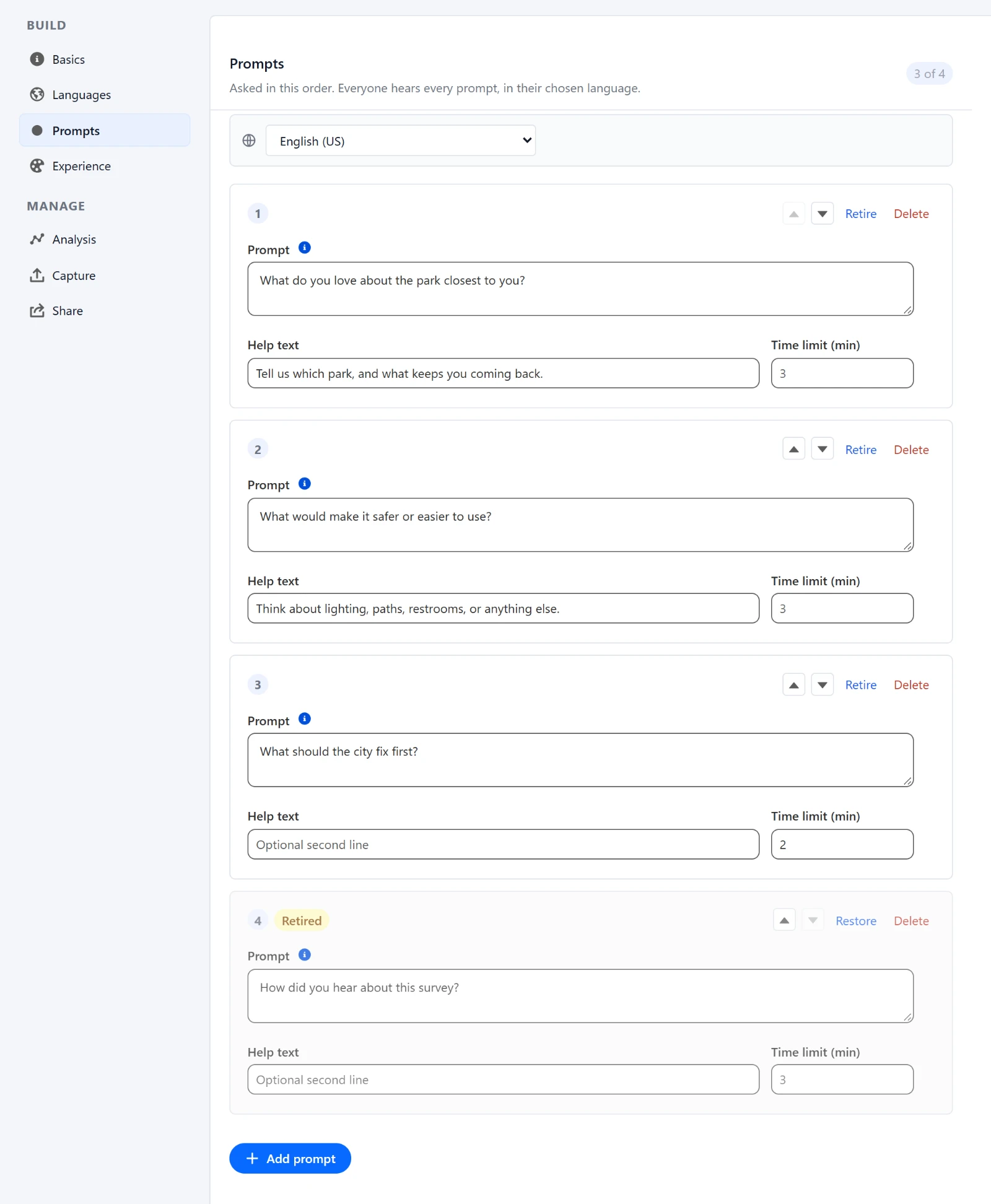
A prompt is one spoken question. Prompts are asked in the order they appear, and you reorder them with Move up and Move down rather than by numbering.
Click Add prompt to add one. Each has:
| Field | Purpose |
|---|---|
| Prompt | The question, as the speaker will hear and read it. |
| Help text | An optional second line under the question. Use it to say what kind of answer you're after. |
| Time limit (min) | How long a recording can run for this prompt. Falls back to the campaign default when left blank. |
The builder's own note on the prompt field is worth repeating: it's stored word for word on every response, so it stays readable in reports, and it's limited to 255 characters. That cap applies in every language.
Retire a prompt, don't delete it
This is the one thing worth getting right, because there's no undo.
Retire takes a prompt out of circulation. It stops being asked, the card shows a Retired badge, and every answer already given to it stays attributable. Restore puts it back.
Deleting a prompt that has answers would orphan them. Those responses stay in Salesforce but no longer point at anything you can name, so they fall out of your reporting. The builder blocks it and tells you why:
This prompt has 4 response(s), so it can only be retired. Deleting it would orphan the answers already given to it.
Delete stays available for a prompt nothing has answered, behind a confirmation, so a typo added five minutes ago doesn't have to live forever as a retired card.
One case blocks deletion across the board. If the campaign holds any responses that aren't linked to a specific prompt, the builder can't prove any given prompt is unanswered, so it only offers Retire:
This campaign has responses that are not linked to a specific prompt, so prompts can only be retired.
Languages
One campaign holds every language. Never clone a campaign to translate it: prompt order, timing, and analysis settings are shared, and only the words change.
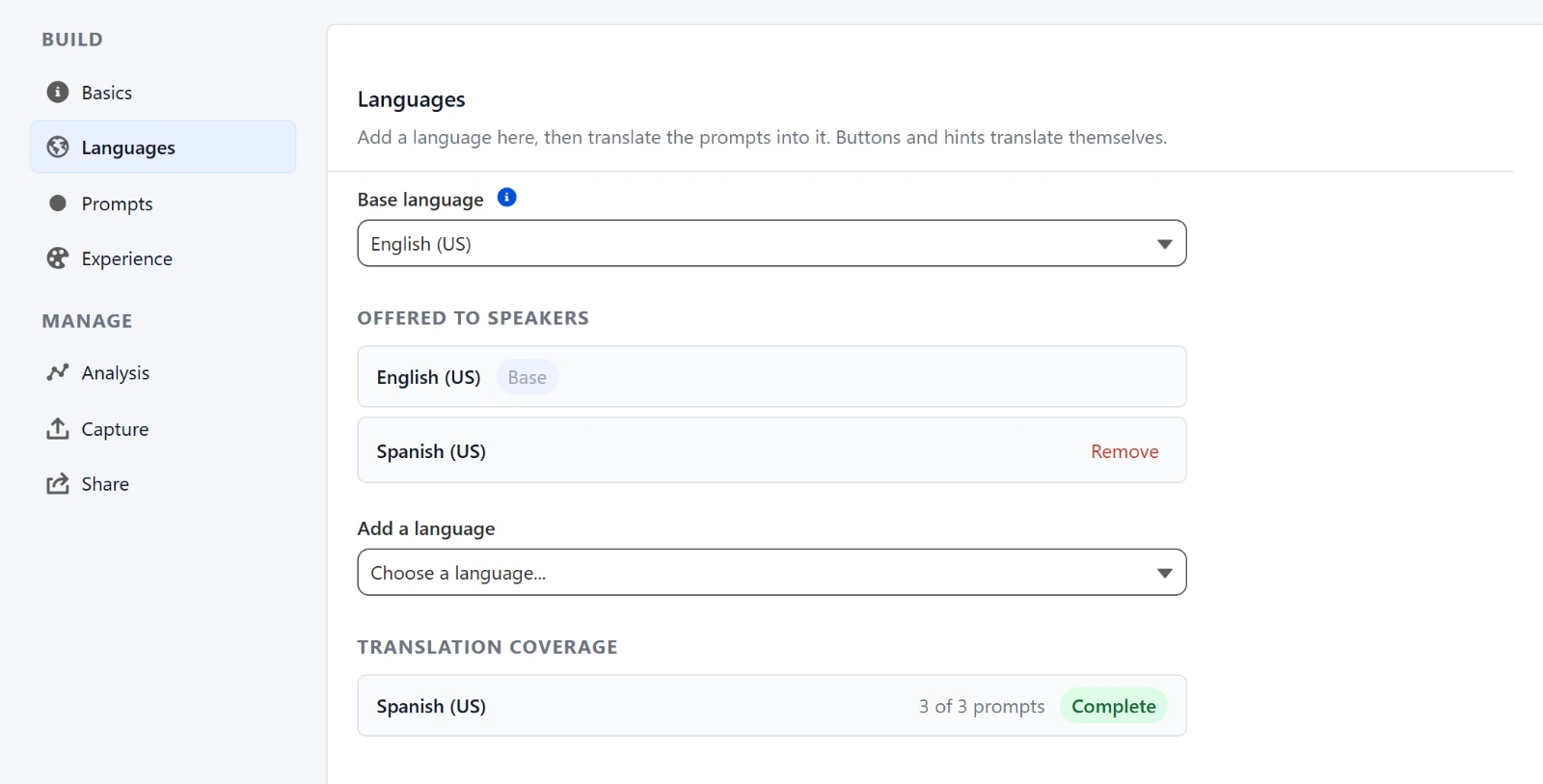
The Languages section sets your Base language, which is the one your prompts are already written in, and the list Offered to speakers. Use Add a language to extend it and the remove control on a row to drop one.
Translating is a mode, not a field on every prompt. The Prompts and Experience sections each carry an editing-language selector marked with a globe. Switch it to another language and you're editing that language's wording, with the same prompts in the same order. Settings that can't differ by language, such as the behavior checkboxes, are hidden while you're translating rather than shown as though they could.
A Translation coverage view shows how much of each language you've filled in.
Everything the product itself says is already translated. The record button hint, the skip and continue controls, the language picker, the thank-you line: all of it ships translated, so adding Spanish gives a Spanish experience with no extra effort. You only translate what you wrote.
Two things to know:
- Fully translated chrome exists for a handful of languages. Enable one outside that set and speakers get your prompts in their language with the surrounding buttons in English. It works, but know it before you advertise a language.
- A missing translation falls back line by line, not campaign by campaign. Translate three prompts of four and the fourth appears in the base language rather than breaking.
The speaker's experience
The Experience section controls what a speaker meets. Leave wording blank to use the packaged defaults, which appear as placeholders so you can see what you'd be replacing.
| Setting | Effect |
|---|---|
| Standalone landing page | Show the welcome title and intro. Turn it off when embedding in a page that already has its own heading. |
| Allow skipping a prompt | Offer a skip control. |
| Allow a typed response | Offer "Type my response" beside the microphone. |
| Show the audio visualizer | Display a live audio spectrum while recording. |
| Redirect when finished | Send the speaker to a URL at the end. Leave blank to stay on the thank-you screen. |
Under Wording, set your own title, intro, and completion message, per language.
What they actually see
They open your link on their phone. No sign-in.
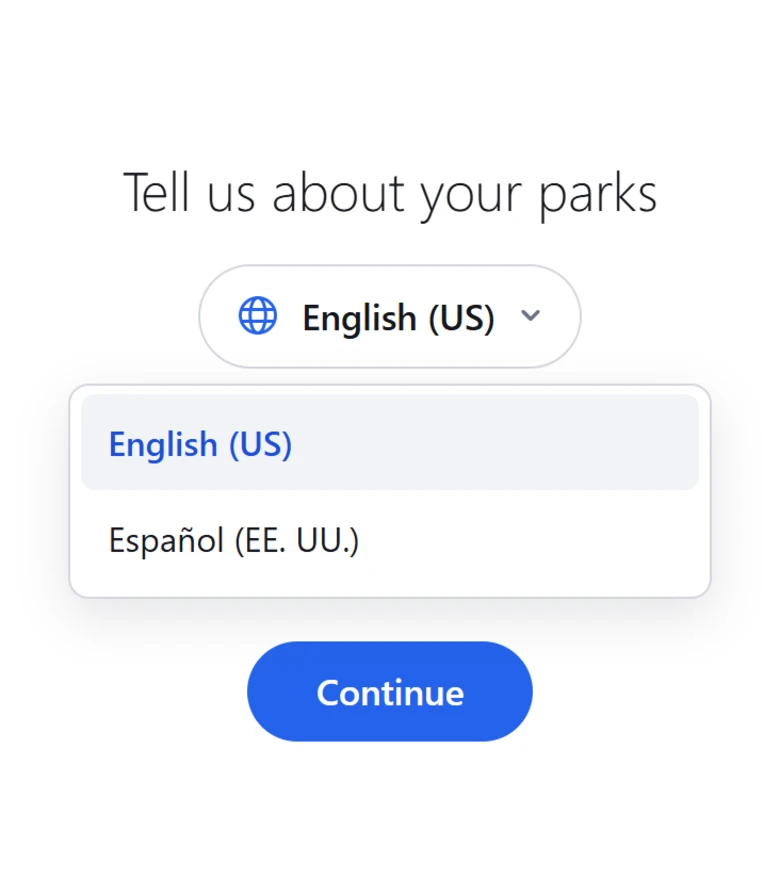
Choosing a language. If the campaign offers more than one, they see a globe and each language written in its own name, so someone who reads none of your other languages can still find theirs. They pick, then continue. You can skip this screen by putting the language in the link.
Answering. One prompt at a time, tap to record.
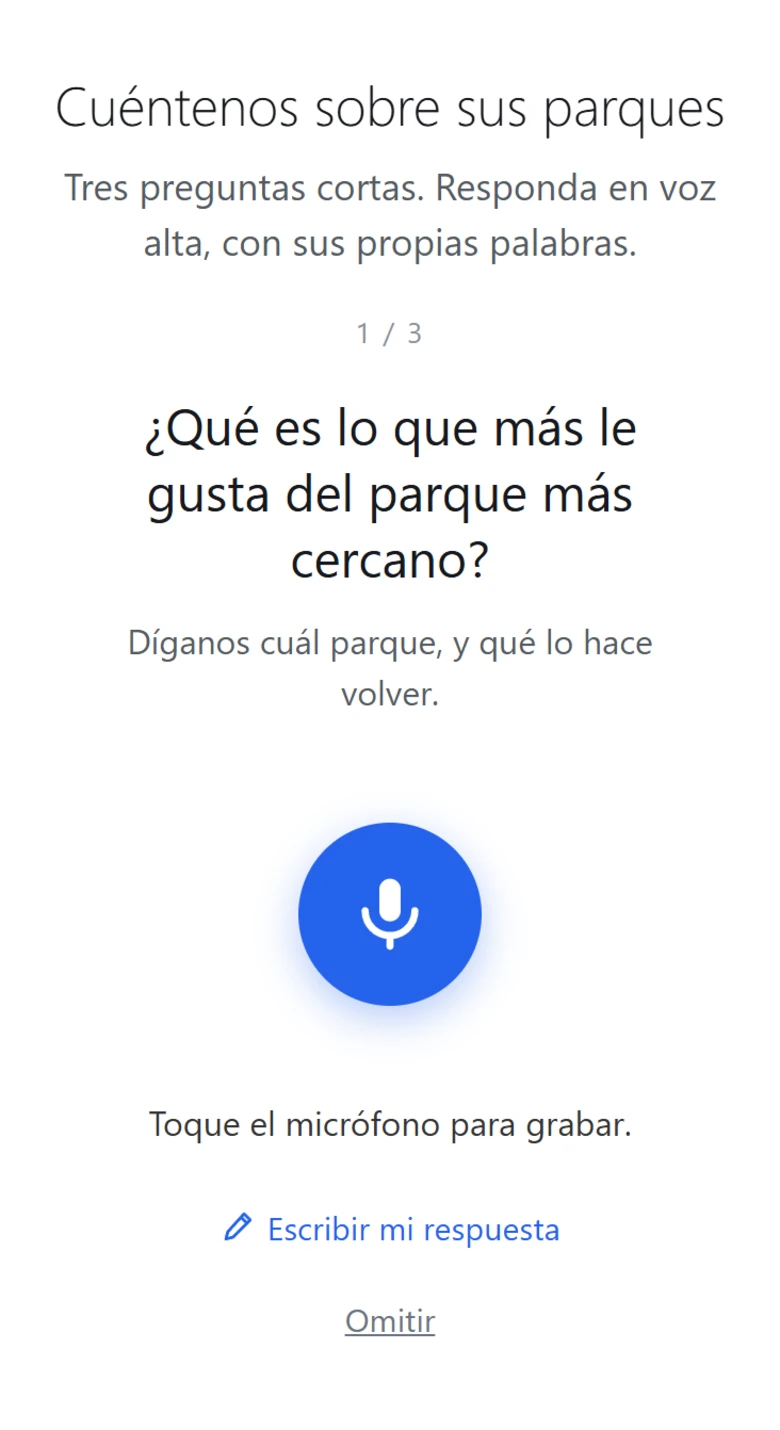
Typing instead. "Type my response" is a real second way to answer, not a fallback for a broken microphone. Typed answers are saved as the transcript and skip transcription, so summary, sentiment, and topics all run over them exactly as they would over speech.
When something fails. If a recording can't be sent, they see the error and get one retry. If that also fails, they're told an administrator has been notified and the session ends, rather than asking them to record a third time into something that isn't working. You get an email when that happens.
Trying it yourself
The campaign record has a Try It tab down its side that runs the real recorder against that campaign, so you can hear the prompts and check the wording, the languages and the time limits without going to find the link.
It is the same thing a speaker gets, not a mock of it, which is the point: if the microphone does not work here, it will not work for them either.
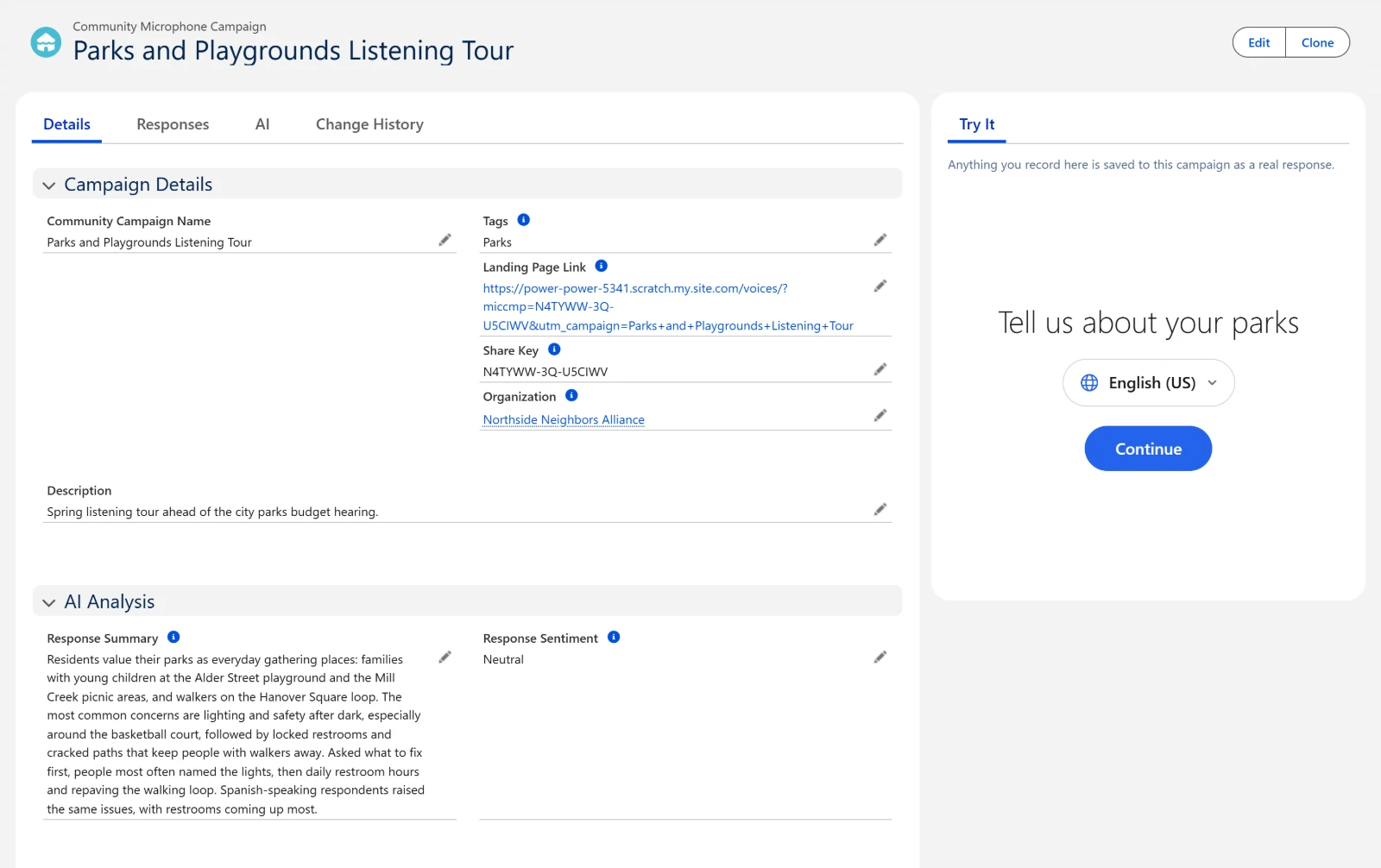
Anything you record there is a real response. It is transcribed, analyzed and counted toward the campaign exactly like any other, and the tab says so above the recorder. It is saved against you, so you can find your test responses afterwards, but nothing else marks them as tests. Delete them before you report on the campaign.
Analysis
The Analysis section decides what happens to a recording after it's submitted. Each pass can be turned off per campaign:
- Transcription of the audio.
- Translation, for answers given in a language other than English.
- A summary of each response.
- Sentiment for each response.
- Topics, matched against the list you set under Topics to look for.
Topics only work if you define them. Leave the list empty and topic extraction is skipped entirely, because there's nothing to match against.
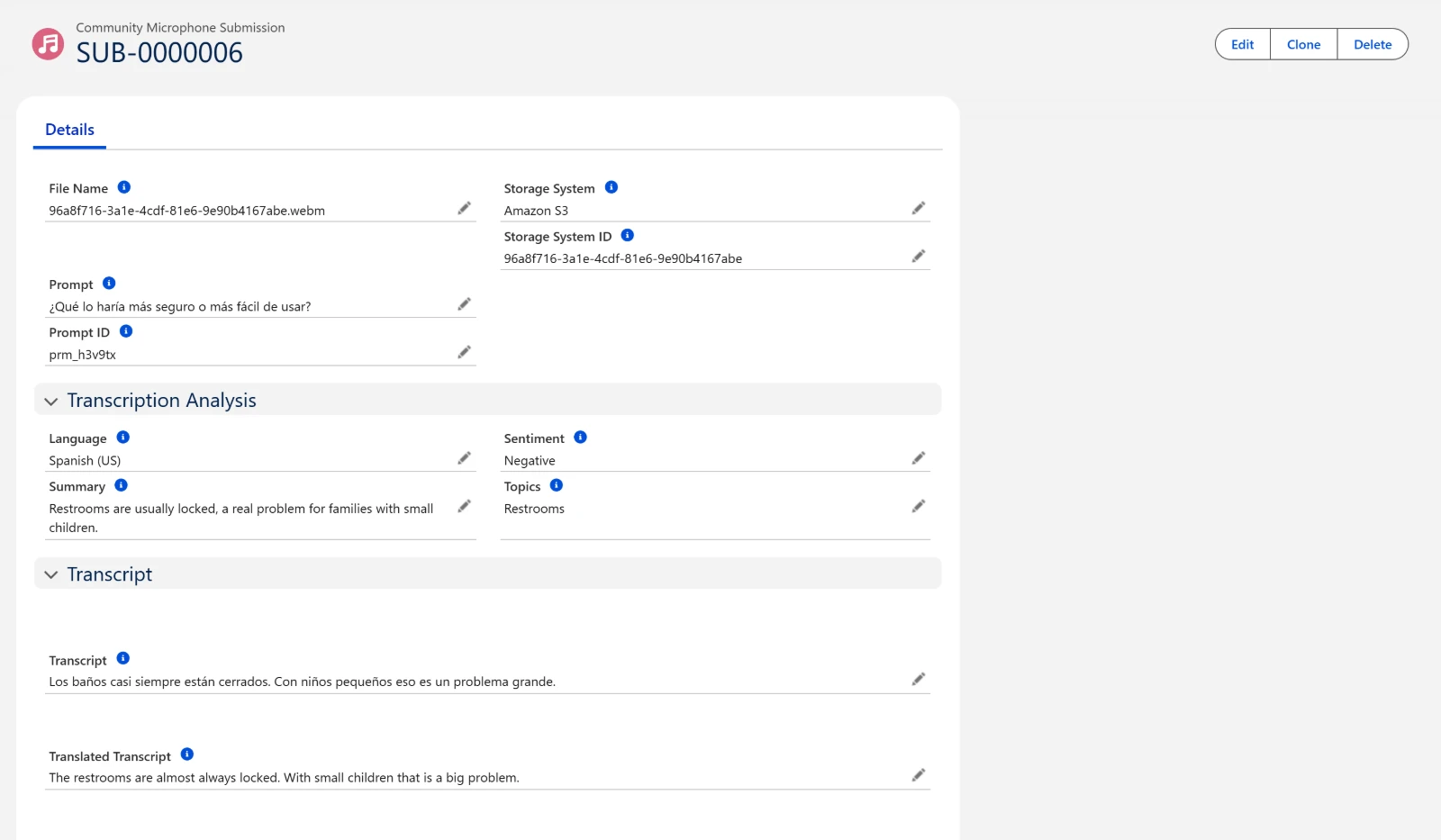
Across the whole campaign you also get a rolled-up summary and sentiment, so you can read the shape of the feedback without opening every response. It runs when A summary or Sentiment is on, and turning both off turns it off.
The rollup reads a sample, not everything. It takes the campaign's 40 most recent responses and works from those. On a campaign of a few dozen that is all of them; on a campaign of five hundred it is the newest forty, so read the rollup as the current shape of the feedback rather than a count of the whole thing. Reporting on the response records is what covers all of it.
The rollup is written in English, from the translated text where a response has one and the original where it does not. So a campaign answered in Spanish rolls up in English, matching the per-response summaries.
Capture
| Setting | Purpose |
|---|---|
| Default time limit (minutes) | The campaign-wide recording cap. A prompt's own time limit wins over it. |
| Record where responses come from | Store the network address a response arrived from. |
A time limit of zero is not "no limit" and isn't accepted. Leave a prompt's limit blank to inherit the campaign default.
Sharing a campaign
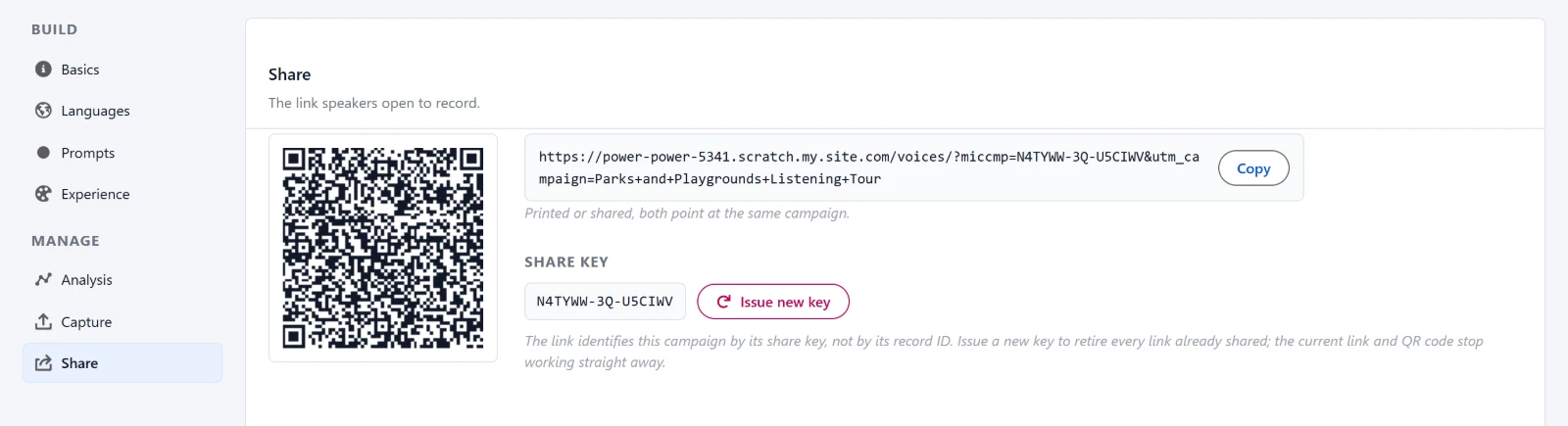
The Share section holds the link speakers open to record, with a Copy button and a QR code.
Revoking a link
Under Share key, Issue new key replaces the campaign's public handle. The old link stops working immediately, and the builder confirms before doing it:
New share key issued. The previous link no longer works.
There's no on/off switch, because reissuing is what you actually want when a link reaches somewhere it shouldn't have. It also breaks every flyer, poster, and email already carrying the old one. That's the intended cost.
Options you can add to the link
| Add to the link | Effect |
|---|---|
| A language code | Skips the language picker and opens straight into that language. |
| An identifier for the speaker | Stored on every response from that person, for when you already know who you sent it to. |
Standard utm_ analytics parameters are carried through and stored on every response, so you can tell a flyer from an email campaign.
Reporting on responses
Each answer is a response record of its own, listed on the campaign record's Responses tab with its sentiment, topics, summary and transcript.
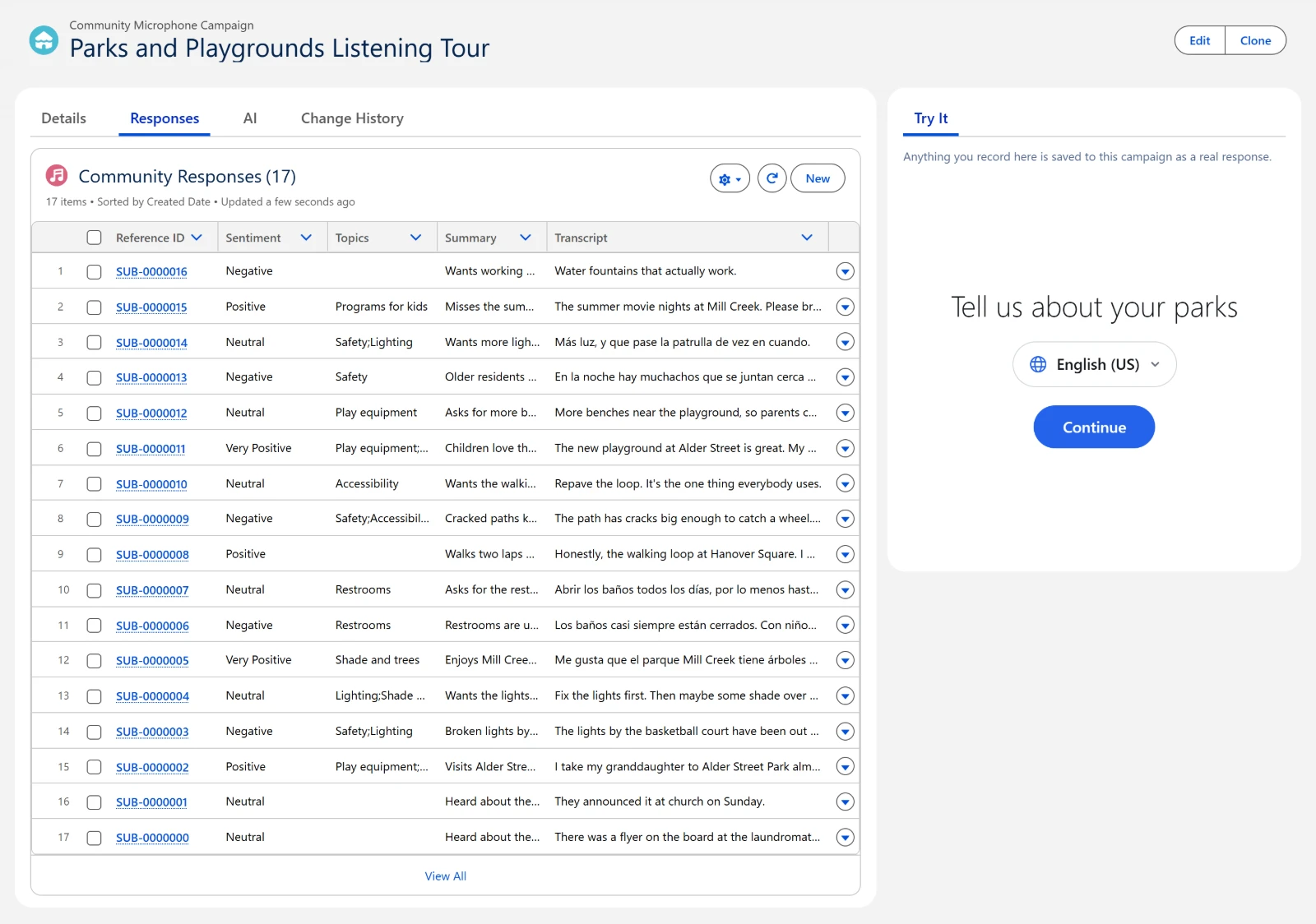
Two fields record what each person was asked, and the difference matters when you build reports.
| Field | Use it for |
|---|---|
Prompt_Id__c | Group by this. It's stable: it doesn't change when you reword a prompt, and it's the same across every language. |
Prompt__c | Reading what was actually asked, in the language that speaker saw. |
Grouping by the prompt text instead would split one question across every language it was asked in, and break again the first time anyone rewords it.
Both are captured at the moment of recording and describe that response permanently. Rewording or retranslating a campaign later never rewrites answers already given.
Asking the assistant
The campaign record carries an AI tab holding an assistant you can ask about that campaign in plain language. It reads the campaign and its responses, so the questions worth asking are the ones a report cannot answer easily:
- What are people actually worried about?
- Did anything change after we added the third prompt?
- Which responses are worth reading in full?
It knows which campaign it is on and how many responses that campaign has, so you do not have to tell it. It reads your org's own records, not a copy and not anyone else's.
A conversation lasts as long as the tab is open. The assistant is a way to read what came back, not a place to store notes, so put anything worth keeping on the record.
It answers from what has been transcribed and analyzed. A response recorded a minute ago may not have come back yet, and a campaign with no responses gives it nothing to work from.
Limits worth knowing
- Prompt text is capped at 255 characters in every language, because it's copied onto every response.
- Anyone with the link can respond, as many times as they like. Reissuing the share key is the only lever.
- There's no playback before submitting. A speaker can't hear their answer back before it's sent.